Fitness AI Connector
Your Garmin Data, Your AI.
Sleep, HRV, training, stress — let your AI assistant make sense of your health data
🏃 Trusted by 60,000+ users
Connects to Garmin Connect™ through the Garmin Health API. You sign in on Garmin's own page (OAuth) — your Garmin password is never shared with us. You can revoke access anytime from your Garmin account.
Which AI assistant do you use?
An AI That Knows Your Data. #
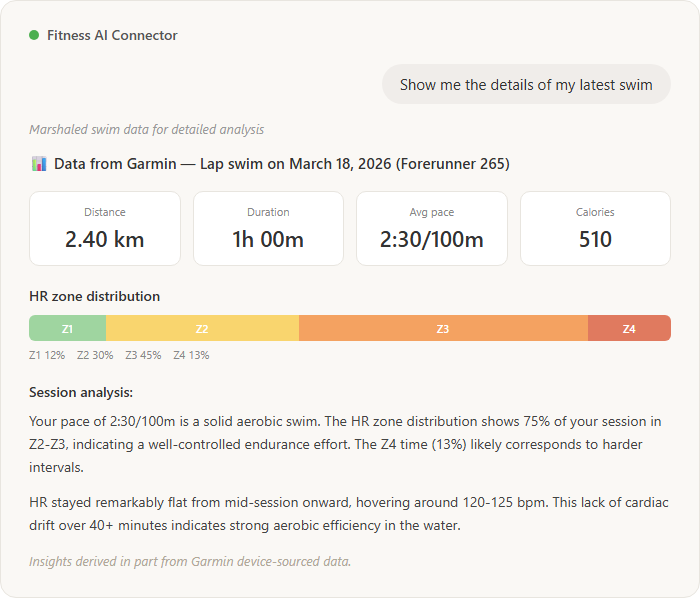
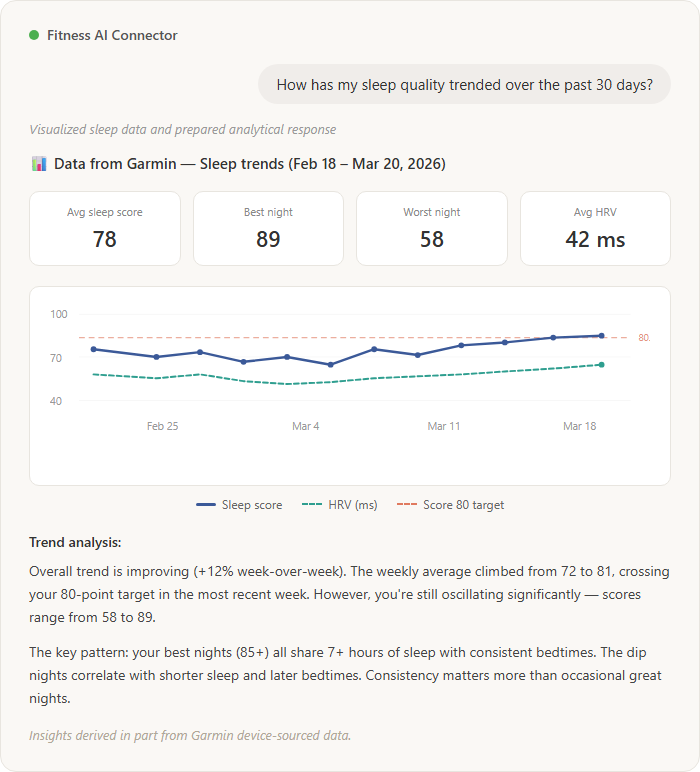
“Analyze my heart rate from yesterday’s run.” “How has my sleep been trending?” — you want to ask AI these questions, but every time you end up taking screenshots, copying numbers, and explaining context from scratch.
With Fitness AI Connector, just ask. AI can access your Garmin data directly, so whether it’s reviewing an activity or analyzing trends, you can dive straight into the conversation.
How It Works #
Connect
Choose your AI assistant above and follow the setup guide
Ask
Ask questions about your health and training in natural language
Get Insights
AI analyzes your Garmin data and delivers actionable answers
Prompt Recipes #
Try asking your AI assistant questions like these.
Sleep Pattern Analysis
"Find common patterns the day before my sleep score drops — training intensity, stress levels, etc."
Build and Send a Workout
"Build an interval workout for next Tuesday: 2 km warm-up, 5 × 1 km at 4:30/km with 90-second jog recoveries, then a 2 km cool-down. Show me a summary first, then send it to Garmin Connect."
Pricing #
60,000+ users and growing (as of October 2026). Start free.
Free
- Data range: 2 days
- Health summary
- Activity list
- Detailed activity data
- Trend analysis
- Send workouts to Garmin Connect
Basic
- Data range: 10 years
- Health summary
- Activity list
- Detailed activity data
- Trend analysis
- Import your Garmin data export (up to 10 years)
- Send workouts to Garmin Connect
Developer Option
Connect a program you wrote yourself — a script, a personal dashboard, or a coding agent such as Claude Code — with your own OAuth client. For your own use only; applications are reviewed individually.
- One personal OAuth client (Client ID, PKCE, no secret)
- Same data and tools as Basic, from your own code
- Requires an active Basic plan · plus applicable taxes
Already on Basic? We now handle Basic billing through Link (Stripe) — please complete a one-time move of your subscription. See what changes for existing subscribers.
Prices are shown before tax. VAT or sales tax for your country is added at checkout and shown before you pay. Payments are processed by Link, Stripe's merchant-of-record service. See Why is tax added to the $3?.