← Back to Fitness AI Connector
Frequently Asked Questions #
Answers to common questions, grouped by topic.
Getting connected #
How long can I keep using the Custom GPT version of Fitness AI Connector?
OpenAI is retiring Custom GPTs, and they will stop working on December 11, 2026 (OpenAI’s announcement). The Custom GPT version of Fitness AI Connector runs on “custom actions,” which OpenAI’s migration does not carry over.
For this reason, Fitness AI Connector will end the Custom GPT version on November 30, 2026. To keep using it in ChatGPT, connect to the ChatGPT Plugin version of Fitness AI Connector (setup guide). If you sign in with the same account, your data and plan carry over as they are. New features such as sending workouts are available only in the ChatGPT Plugin version and the Claude version.
I signed in, but my Garmin data isn't available
Using Fitness AI Connector requires two steps: (1) signing in (creating an account), and (2) connecting your Garmin account. Even if you’ve signed in, your data won’t be available until the Garmin connection is also complete.
If your AI assistant doesn’t return Garmin data and instead prompts you to connect, your Garmin connection isn’t finished yet. Tap the connection link the assistant provides (a URL starting with garmin-mcp-nuqd.onrender.com/garmin/link), sign in, then tap “Allow” on the Garmin consent screen. This is a one-time step — once connected, future use is automatic.
I was asked to sign in again after opening the connection link
When you open the connection link in a browser, you may be asked to sign in again. This is normal. Sign in with your email and password, or with your Google account, and you’ll continue to the Garmin connection screen. Once sign-in and Garmin connection are complete, you won’t be asked again.
When you do, be sure to sign in as the same account you normally use to connect with your AI assistant (ChatGPT / Claude). Google and email-and-password sign-ins with the same email address land on the same account, but accounts that were registered separately in the past stay separate — signing in as the other one means your Garmin connection won’t be visible to your AI assistant (see “It says “Garmin Account Connected!” but my AI assistant says Garmin is not connected” below for details).
How can I check whether my connection is complete?
Ask your AI assistant “what’s my connection status?” or “show me today’s health summary.” If it returns an answer based on your Garmin data, your connection is complete. If it doesn’t return data and prompts you to connect, follow the steps in “I signed in, but my Garmin data isn’t available” above.
My Garmin connection succeeded, but no data ever arrives
If your assistant says Garmin is connected but returns no data even after your device has synced and 24 hours have passed, check which Garmin Connect region your account belongs to. Fitness AI Connector works only with international Garmin Connect accounts (connect.garmin.com). Garmin Connect China accounts (connect.garmin.cn) are not supported — Garmin operates them as a fully separate environment that does not share data with the international one, so the connection appears to succeed but no data is ever delivered. If you signed in with the same email on connect.garmin.com, that is a separate, empty international account, not your China account. There is no way for us to access China-region data, and we have no plans to support it.
If your account is international and data still does not arrive, make sure your device has synced to the Garmin Connect app, then contact support at contact@fmp.it.com.
It says "Garmin Account Connected!" but my AI assistant says Garmin is not connected
Fitness AI supports multiple sign-in methods (Google account, or email and password). If you sign in as a different account than usual when connecting Garmin — for example one registered earlier with the other method, or with a different email address — the Garmin connection is linked to that account. The connection itself succeeds — so you see “Garmin Account Connected!” — but your AI assistant is connected to the other account.
Which fix applies depends on your situation. First, ask your AI assistant to run Get Help — it detects other accounts linked to the same Garmin, tells you which case you are in, and includes a logout link (valid for 10 minutes) for the steps below. Accounts are found even when they were registered with different email addresses, as long as they are connected to the same Garmin account, and the reply shows each one with its email partly hidden (for example at***te@example.com) so you can tell which one to sign in with.
If the account your AI assistant uses has never been connected to Garmin: remove Fitness AI Connector from your AI assistant, then add it again. Sign in whichever way you normally do. If a Garmin authorization screen follows, approve it. Either way, the account your assistant uses ends up connected.
If you need to sign in with a different account (the connection or subscription lives on your other sign-in, or the one you are using has expired):
- Open the logout link from the Get Help reply above.
- Remove Fitness AI Connector from Claude or ChatGPT.
- Add the connector again.
- On the sign-in screen that appears, choose the sign-in method and the account you want to use. If you sign in with Google and it picks your previous account automatically, use Google’s account switcher to choose a different one.
The sign-in screen appears only for this one reconnection — normal use and token refresh never show it. If you are already signed in on the web, you can open https://garmin-mcp-nuqd.onrender.com/logout directly instead of step 1.
Already paid for Basic on the other account? If both accounts are connected to the same Garmin, Basic is applied automatically to the account your assistant uses — no transfer needed. Billing and cancellation remain on the account that paid (see “Can I cancel anytime?”).
If this doesn’t resolve the issue, please contact support at contact@fmp.it.com.
How to enable Historical Data
To allow your AI assistant to refresh or backfill missed data, the Historical Data permission must be enabled in Garmin Connect.
Steps:
- Open the Garmin Connect app, go to More → Settings → Connected Apps → Fitness AI Connector
- Turn on the Historical Data toggle
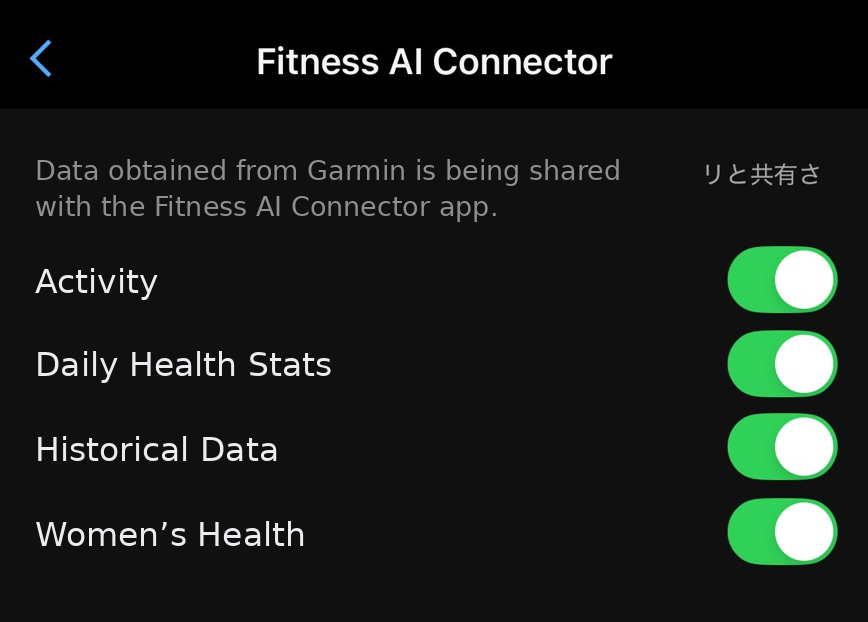
You can also do this in your browser from Garmin Connect Account Settings.
Once enabled, go back to your AI assistant and ask it to “refresh my data” to re-fetch data that was missed on or after the day you connected (for example, gaps caused by missed syncs).
Note that this permission only lets you re-fetch data from the day you connected onward. Data from before your connection date cannot be retrieved even with this permission enabled. See “I can’t find my past data” above for details.
How to enable Women's Health (menstrual cycle) data
To use menstrual cycle data with your AI assistant, you need to be tracking your cycle in the Garmin Connect app, and the Women’s Health permission must be enabled for Fitness AI Connector.
If you connected recently, this permission was enabled on the Garmin consent screen (unless you unchecked it). If you connected before this feature became available, you can enable it anytime — no reconnection needed:
- Open the Garmin Connect app, go to More → Settings → Connected Apps → Fitness AI Connector
- Turn on the Women’s Health toggle
You can also do this in your browser from Garmin Connect Account Settings.
After enabling, add or update a cycle entry in the Garmin Connect app and sync — your cycle data will then start flowing in. Then just ask your AI assistant something like “where am I in my cycle?”
Your data #
Why do the numbers differ slightly from the Garmin Connect app?
To keep AI responses fast, Fitness AI Connector computes metrics from data aggregated into 60-second intervals. Compared with Garmin Connect, which uses 1-second raw samples, this can produce small differences in averages such as average power or average heart rate (for example, around 1 W in average power). This is not a bug — it is a deliberate design choice that prioritizes response speed.
Basic summary values such as total distance, duration, calories, and maximums are not affected by this aggregation and should closely match Garmin Connect.
Update (August 2026): For activities synced on or after August 14, 2026 (Basic and above), lap distances use your device’s recorded values where available, and Training Effect, time in zones, and Normalized Power come directly from the device recording — these match Garmin Connect exactly.
If you notice a clearly large discrepancy, it may be a bug — please let us know at contact@fmp.it.com. Reports from users have directly led to real improvements.
What data can be retrieved? Is any data unsupported?
Available data (highlights):
- Health data: sleep (score & stages), HRV, stress, Body Battery, heart rate, steps, calories burned, body composition, and respiration rate — both during sleep and across the whole day (15-minute measurement windows).
- Activity data: heart rate, power, cadence, speed, distance, elevation (ascent & descent), lap splits, GPS overview.
- From your device’s FIT files (Basic plan and above; activities synced on or after August 14, 2026): Training Effect (aerobic & anaerobic), time in heart-rate and power zones based on your personal zone boundaries, Normalized Power, Intensity Factor and TSS, and respiration recorded during the activity. Each of these depends on your device writing it into the FIT file (Intensity Factor and TSS on power-meter cycling with an FTP set; in-activity respiration when paired with a heart-rate strap that transmits RR intervals). Garmin does not deliver device files retroactively, so these apply to new activities going forward.
Unavailable data:
- Not exposed by Garmin’s official partner APIs (confirmed directly with Garmin; computed in Garmin Connect’s backend): Training Readiness, Recovery Time, Training Status, Acute Load / Load Focus, Endurance Score. They do not arrive automatically through your Garmin connection. If Garmin adds official access, we will support them.
- You can still read their history by importing Garmin’s “Export Your Data” files on the import page: Training Readiness, Training Status, training load (acute / chronic), Endurance Score, Hill Score, race time predictions and more come in up to the day you requested the export (Basic after the one-time move — see Can I import a full account export?). Recovery Time and Load Focus are not included.
- Wrist-based measurement covers all-day and sleep respiration, which we always provide. Respiration recorded inside an activity requires a heart-rate strap, as noted above.
We continue to expand what we read from Garmin’s APIs and FIT files — user reports directly shape this roadmap.
Which Garmin devices are supported? What data will my device provide?
Any Garmin device that syncs with Garmin Connect can be connected. What data arrives, however, depends on the device’s sensors and features, not on Fitness AI Connector:
- Activities and steps come from nearly every device.
- Sleep, stress and Body Battery require a watch with 24/7 wrist heart rate. Most watches released since roughly 2016 have it; very early models such as the Forerunner 225 do not.
- HRV Status requires a watch that supports all-day HRV measurement — generally models released in 2022 or later.
- Edge cycling computers deliver activities, but no sleep, stress or HRV.
If you’re unsure, connect on the Free plan first, wait a day, then ask your assistant “what data do you have for me?” Upgrade once you’ve confirmed the data you want is arriving. We cannot add data that the device does not record.
I can't find my past data
Due to Garmin Health API limitations, only data synced after the day you connected your Garmin account can be retrieved. Data from before the day you connected is not available.
This is a restriction set by a Garmin policy that took effect in November 2025. Turning on the Historical Data permission, or reconnecting your account, will not make data from before your connection date available. This is not a limitation on our side — it’s how Garmin’s system works.
Additionally, data beyond your plan’s range (Free: 2 days, Basic: 10 years — 5 years for an existing subscription until its one-time move) is automatically deleted.
One exception: if you edit an activity in Garmin Connect (renaming it, for example), Garmin notifies us of that activity’s summary. So its summary — but not its detailed data or FIT file — may appear even if the activity predates your connection, as long as it falls within your plan’s data retention window above. See Are edits I make in Garmin Connect reflected here?.
Note for upgraders: while on the Free plan, detailed activity data is not stored. Upgrading to Basic starts storing it from that point onward — it does not retroactively recover detailed data from your Free period.
You can bring in older data yourself on the import page (Basic after the one-time move):
- Your whole history: request Garmin’s “Export Your Data” and send its files. Past activities, sleep, daily summaries (steps, heart rate, stress, Body Battery…), Health Status, weight, blood pressure, training metrics and more are filled in. See Can I import a full account export?.
- A few activities: export them one by one from Garmin Connect as activity files (FIT). See How do I import activities from before I connected?.
Only data within your plan’s retention period is imported.
My Zwift (or other app) activity is in Garmin Connect but doesn't appear here
Activities that reach Garmin Connect through an automatic link with a third-party platform — such as a Zwift ↔ Garmin Connect account connection — are not delivered to partner services through Garmin’s API. Garmin’s Developer Program support has confirmed that this is intended behavior by design, so it is not something we can change on our side, and enabling Historical Data or re-linking your Garmin account will not help.
What is delivered:
- Activities recorded on a Garmin device (watch, Edge, etc.) and synced to Garmin Connect — these arrive normally
- Activities you upload to Garmin Connect manually, for example a FIT file exported from Zwift
What is not delivered:
- Activities transferred automatically from a linked third-party app
The distinction is how the activity entered Garmin Connect — automatic transfer or manual upload — not which platform it came from.
There are two ways around it.
- Upload to Garmin Connect manually. Export the FIT file from Zwift (or the app in question) and upload it to Garmin Connect yourself. The activity then comes through as normal, and it also stays in Garmin Connect for use with Garmin’s own features.
- Upload to our import page directly. Drop the exported FIT into the import page (Basic plan and above). Activity FIT files recorded on non-Garmin devices are accepted too. This is one step instead of two, but the activity does not appear in Garmin Connect.
Examples of what actually comes through
- A FORM pool swim: pool length, stroke type, per-length records and laps, plus strokes, average stroke rate, duration and average speed for each length, and total strokes and average stroke distance for the session
- An indoor cycling app ride: per-lap records, average and maximum power, Normalized Power, Intensity Factor, TSS, total work, cadence and heart rate
Both were confirmed on real files. What you get depends on which fields the recording app or device writes into the FIT, so the same set is not guaranteed for every app.
One limitation: if Garmin has already delivered a detailed file for the same activity, an upload to the import page is not applied. We do not overwrite a file that came from Garmin with one uploaded afterwards — a rule that stops the same workout appearing twice. A file that a third-party platform re-exported after adding fields to an activity your Garmin watch recorded can fall into this case. We are looking at improving this.
Are edits I make in Garmin Connect reflected here?
It depends on what you edit.
Reflected: activity-level edits such as the activity name, activity type, distance, and duration. Garmin notifies partner services when you make these changes, and they normally appear within a few minutes.
Not reflected: set-level edits inside a strength training activity — assigning an exercise name to a set, or correcting reps and weight. These stay in Garmin Connect and are not delivered to partner services through any of Garmin’s partner data channels. We verified this against real activities, and Garmin’s Developer Program support confirmed in August 2026 that providing updated exercise names to partners is not supported and is not on their roadmap.
What you will see for strength sets is the exercise category your watch detected during the workout. Watches recognize certain barbell-type movements from motion patterns; machine exercises such as leg press typically come through as “unknown.” That auto-detected value is delivered; what you assign afterwards in Garmin Connect is not.
When the watch pins a set down to a specific movement, we show that detection as an exercise name from Garmin’s own vocabulary (for example, overhead dumbbell press) — available since September 2026. When the watch is torn between several movements, we list them as candidates rather than picking one. Either way, these names spell out the watch’s automatic detection; they are not names you assigned later in Garmin Connect.
I got a response like "already requested" when refreshing my data
If you ask to refresh your data several times in quick succession, Garmin may treat the repeated request as a duplicate because it has already accepted the same request recently. This is not a failure — your request has already been accepted and your data is being processed.
Please wait a few minutes and then check your data again. There’s no need to keep asking for a refresh right away.
Importing past activities #
How do I import activities from before I connected?
Export the activity files (FIT) from Garmin Connect and drop them into the import page (Basic after the one-time move). Sign in and pick your files — that is the whole flow.
This suits a handful of activities. To fill in your whole history — including sleep and daily health data — send Garmin’s “Export Your Data” files instead (see Can I import a full account export?).
Exporting from Garmin Connect (3 steps)
- Open the activity in Garmin Connect
- Click the gear icon (⚙) at the top right
- Choose “Export Original”
You get a .zip. Drop the ZIP as-is into the import page (a bare .fit works too).
One batch takes up to 200 files and 100 MB in total (the page splits larger selections automatically). A single file may be up to 50 MB; files over 20 MB are stored as-is without detailed parsing.
What cannot be imported
- GPX / TCX: not supported. Use “Export Original” in Garmin Connect to get a FIT file
- Health-data FIT files (sleep, stress, daily monitoring): not read. Health history comes in through the JSON files of Garmin’s “Export Your Data” instead (see Can I import a full account export?)
- Activities entered by hand in Garmin Connect: there is no device recording, so there is no FIT to import
- Strength-training set edits: exercise names and weights you assign in Garmin Connect are not written into the FIT, so importing does not bring them in (see Are edits I make in Garmin Connect reflected here?)
- FIT files with no activity session in them
What happens if I import the same activity twice?
Uploading the same file again reports “already imported” and changes nothing (it does not create a duplicate).
Uploading a file you re-exported after editing it in Garmin Connect updates the existing activity with the new file’s values. The activity name, sport and device name keep Garmin’s values (we do not overwrite them with the device’s own guess).
If you import an activity that Garmin has already delivered, what happens depends on whether Garmin also sent the detailed file. If Garmin delivered the activity but no detailed file, your upload links to that activity instead of creating a new one. If Garmin delivered the detailed file as well, we keep Garmin’s file and the upload is not applied.
How are multisport activities (triathlon) imported?
They come in as a parent (the whole event) plus its children (swim, bike, run, and the transitions), and both appear in your activity list. Detailed data — laps and time series — is attached to each child.
Ask about “the whole triathlon” and you get the parent; ask about “the bike leg” and you get that child.
How long is imported data kept?
The same as everything else: your plan’s retention period (Basic: 10 years; 5 years for an existing subscription until its one-time move). The clock runs on the activity’s own date, not the day you imported it.
If you downgrade, data beyond the Basic retention window is deleted 30 days after the plan ends.
Can I import a full account export?
Yes. Request “Export Your Data” at Garmin Account Data Management, unzip the download, and send its files on the import page. The page lists which files it takes and what each one fills in: past activities (the UploadedFiles_*.zip files — keep them zipped), daily summaries, sleep, Health Status, weight, blood pressure, VO2 max, Training Readiness, Training Status, training load, Endurance Score, menstrual cycles and more.
- Plans: Basic after the one-time move.
- Once per day (UTC), all in one batch. Select every file you want before pressing Upload. Files you add after sending have to wait until the next day — the page shows when the next import can start. An upload that stops partway or that you cancel does not count.
- Processing takes time — often several hours. We email you when it has finished; you can close the page.
- Nothing is duplicated or overwritten. Data you already have (delivered by Garmin or from an earlier import) is kept, and only days with no data are filled in, so sending the same export again does not create duplicates.
- Only data within your plan’s retention period is imported, and an export only covers data up to the day you requested it — everything after that arrives through your Garmin connection.
Do not send the whole export ZIP itself: unzip it first and pick the files inside.
Which plan includes importing?
Both kinds of import — activity files (FIT) and Garmin’s “Export Your Data” files — are available on Basic after the one-time move. On Basic before the move, the import page explains the move first; on the Free plan it shows an upgrade prompt instead.
That is because reading imported data — detailed activities and long history — requires Basic (Free has a 2-day data range and no detailed activity data).
Sending workouts #
Can my AI assistant send a workout to my Garmin watch?
Yes. Ask your AI assistant to create a workout — for example “make a 45-minute easy run with 4 strides for Saturday” — and check the summary it shows you. Once you confirm, the workout is added to your Garmin Connect calendar on that date and syncs to your watch. Running, cycling, pool swimming, strength, cardio, yoga, Pilates, multisport, and other workouts are supported (some watches do not show “other” workouts). This is available on the Basic plan, in Claude and in the ChatGPT Plugin version (available since October 6, 2026). The Custom GPT version does not send workouts.
It says the Training permission is off. What should I do?
Turn on Training for Fitness AI Connector in the Garmin Connect app: open the Garmin Connect app → Settings → Connected Apps → Fitness AI Connector, and switch on Training. You do not need to reconnect.
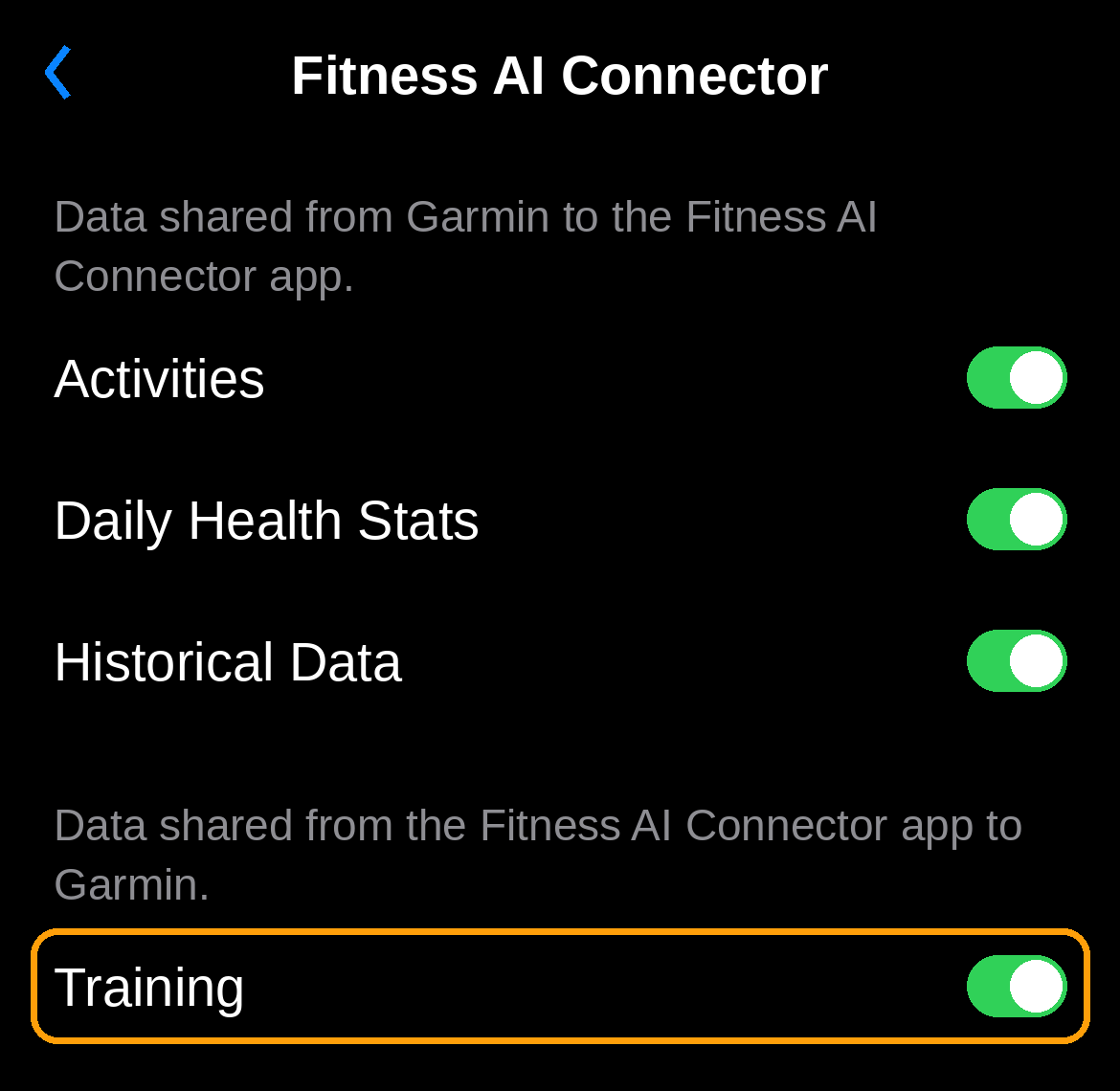
If you connected Fitness AI Connector after October 2, 2026, Training was offered on the consent screen when you connected.
Garmin Connect doesn't show the steps of my workout
For workouts the Service creates, the Garmin Connect app and website do not show the step-by-step breakdown; instead they show a note that the workout can be viewed and edited in Fitness AI Connector. This is how Garmin Connect displays workouts created by partner apps — the workout itself is saved correctly.
- Your watch gets the full breakdown. After the workout syncs, you can see every step on your watch, including repeats
- To see which workouts you’ve scheduled: ask your AI assistant, for example “show me the workouts you’ve scheduled” — it lists their names, sports and dates. Check the step-by-step breakdown on your watch.
- To change a workout: it can’t be edited in Garmin Connect. Ask your AI assistant to redo it — the Service deletes the original and creates a new one
Can it see or delete my other workouts?
No. The Service can list and delete only the workouts it created for you. Workouts you made yourself, or that a coach or another app sent, are not visible to it and are never changed. To change a workout the Service created, ask your AI assistant to delete it and create a new one.
I'm on Basic but can't send workouts
We’ve moved Basic billing to Link (by Stripe), so existing subscribers are asked to complete a one-time move. Once you’ve done it, you can send workouts to Garmin Connect. The price stays the same, and your current subscription ends automatically, so you won’t be charged twice. See I already subscribe to Basic. Does anything change for me? for the steps.
Plans and billing #
I pay for ChatGPT (Go or Plus) or Claude Pro, but Fitness AI Connector still shows Free
That is expected. A paid plan with OpenAI or Anthropic covers your use of ChatGPT or Claude itself. It does not include the Fitness AI Connector Basic plan, and we are not billed or notified through it. Basic is a separate subscription with us (see Pricing for the price), and it is the only thing that switches your plan here from Free to Basic.
To upgrade, follow How to upgrade to the Basic plan and sign in with the same account you use with your assistant. If you have already subscribed to Basic with us and still see Free, the subscription is most likely attached to another of your sign-in methods — see the account mismatch answer.
How to upgrade to the Basic plan
Go to the Pricing section on this page, click the “Upgrade →” button on the Basic plan, then sign in and proceed to checkout. Your AI assistant can explain the plans and point you to this Pricing section; the purchase itself is always made here on the website.
Note: When signing in at checkout, use the same account (same email address / sign-in method) you use with your AI assistant. Paying with a different account will prevent your plan from switching correctly.
I already subscribe to Basic. Does anything change for me?
Yes — please complete a one-time move of your Basic subscription. We now handle Basic billing through Link (Stripe), and subscriptions on our previous billing setup need this step. Open the subscribe page (ask your AI assistant, or go to https://garmin-mcp-nuqd.onrender.com/subscribe), sign in with the account you use today, and complete the checkout. You won’t be charged today: the updated subscription starts when your current billing period ends, the price is the same ($3/month plus applicable taxes where required), and your current subscription is closed automatically. The checkout page shows this as a free trial ending on your current renewal date: that is simply the remaining time you have already paid for, not an extra trial, and the first charge on the new subscription is on that renewal date. You will not be billed twice for the same period.
Once you’ve moved, Basic keeps 10 years of history and you can import your Garmin data export in one go.
Your current Basic subscription keeps renewing as it does today, and your history is kept for up to 5 years. Completing the move gives you up to 10 years of history and bulk import of your Garmin Connect export. You can cancel at any time from Manage billing.
Why do I need to enter my card again for the one-time move?
After the one-time move, Basic payments are processed by Link (Stripe’s merchant-of-record service) so that the correct tax is collected for your country. Link uses its own payment account, separate from the one we used before, and saved cards cannot be moved between the two. You enter your card once at checkout; if you choose to create a Link account, Link can remember it for you. We never see or store your card details either way.
I already completed the one-time move, but my assistant still shows the notice
If you completed the checkout, the move is done and nothing else is needed — please do not start another checkout (our subscribe page will also stop you from creating a second subscription). Your assistant may repeat the notice for a short while: it can appear once more within about a day of the move, and some assistants keep earlier messages in memory. To confirm, ask your assistant for your profile — the response includes a billing migration status of “migrated” with the date — or open https://garmin-mcp-nuqd.onrender.com/portal, which shows that your one-time move is in progress. If the notice keeps appearing after a day, email contact@fmp.it.com.
Why is tax added to the $3?
The Basic plan is $3 per month before tax. When you check out, tax is calculated for your country or region according to its rules, added to the price, and the total is shown before you confirm payment. For example, customers in the United Kingdom pay 20% VAT on top of $3; in some US states only part of the price is taxable, so the amount is lower. The tax is calculated, collected and remitted by Link (Stripe), which acts as the merchant of record for the sale. In countries where Stripe does not handle tax on our behalf, including Japan, no tax is added at checkout.
Why does my receipt or card statement show "Link" instead of FMP?
Basic subscriptions are sold through Link, Stripe’s merchant-of-record service. Link handles the payment and issues the receipt, so the charge appears on your card statement as “LINK.COM* FITNESS AI C” and the receipt page carries Link’s branding rather than ours. (“FITNESS AI C” is Fitness AI Connector shortened to fit the statement.) This is expected. The service itself is still provided by FMP under the Terms of Service. Receipts are emailed by Link; you can also review invoices and manage the subscription from the Customer Portal at https://garmin-mcp-nuqd.onrender.com/portal.
My invoice shows FMP as the seller and no tax. Is that right?
Yes. In a small number of countries, including Japan, Stripe does not act as the merchant of record for tax purposes. If you are in one of them, your invoice PDF is issued in FMP’s name with our address and no tax line. The payment itself is still processed by Link, so the online invoice page notes “Sold through Link”, the receipt page carries Link’s branding, and your card statement shows “LINK.COM* FITNESS AI C”. Nothing else changes: the price, the service and the way you manage your subscription are the same.
Cancelling and data retention #
Can I cancel anytime?
Yes, anytime. Ask your AI assistant to open the Customer Portal. The assistant gets the portal link by calling the manage_subscription tool and gives it to you (or open the Customer Portal from the website, below); open it and cancel with one click. Billing stops at the end of the current period.
You can also open the Customer Portal directly: https://garmin-mcp-nuqd.onrender.com/portal (sign in with the same method you use with your AI assistant).
If your Basic plan is held by another sign-in of yours — your assistant will tell you so, and your profile will show “linked account” — the Customer Portal opens only from that account. Sign in with the method you paid with, then cancel there. The shared Basic access on your other accounts ends automatically when the subscription ends.
What happens to my data if I cancel?
Your data is kept for 30 days after your subscription ends. If you resubscribe within that window, your history is preserved as-is. After 30 days, the Free plan’s data range applies and older data is permanently deleted (this cannot be undone). Account deletion is separate and follows the Terms of Service.
Will data deleted before the retention period became 5 years come back?
No. The 5-year retention applies going forward only. Data that was already deleted under the previous retention period (90 days) cannot be restored. Data still in our database when the retention period was extended is carried over and kept under the 5-year policy.
Developer option #
Can I connect my own app, script, or dashboard to Fitness AI Connector?
For your own use, yes — through the Developer Option, a paid add-on to the Basic plan that is granted on request. It gives you a developer credential so that one program you operate yourself — a script or command-line tool on your own computer (including AI coding tools that run locally), or a dashboard on a server you run — can sign in as you and read your own data through the same tools the AI assistants use.
What it is not: it does not allow apps that other people use. Sharing the credential, letting another account sign in through it, or building on it something you distribute is not permitted, and a public release of a third-party app built on the connector isn’t possible. The reason is unchanged: our Garmin licence covers how Garmin data and attribution are presented to you, and we can’t extend it to software that presents your data to others.
How to apply: you need the Basic plan on its current terms (a Basic plan on the current billing method — that is, started after the change or moved over with the one-time billing move — or a Basic plan we granted on the same terms). Apply from the Developer Option page while signed in: tell us what your program does and the callback address it uses — an https address, or a loopback address (127.0.0.1 or localhost) on your own computer. One program and one callback address per licence; mobile apps with custom URL schemes are not supported. We review each request individually, and the number of active licences is limited. Pricing is confirmed when we reply; see Section 4.7 of the Terms for the conditions.
If you don’t need a live connection: ask your AI assistant to output the data as a table and copy it into your own tool. That needs no licence.
How do I cancel Developer Option?
To stop Developer Option alone, cancel “Fitness AI Connector - Developer Option” in Manage billing; your Basic plan continues. If you cancel Basic, Developer Option ends on the same day your Basic ends and is not charged after that, so you do not need to cancel it separately. The remaining days of Developer Option are not refunded.