← Back to Fitness AI Connector
Use with Claude #
Add Fitness AI Connector to Claude as a custom connector. You can set this up and start using it today.
What You Need #
- A Claude.ai account — custom connectors work on all plans (Free: 1 connector / Pro, Max and above: multiple)
- A Garmin device + Garmin Connect account (age 18+)
First-Time Setup #
The first time you use it, follow the steps below in order. There are several stages: adding the connector → signing in to Fitness AI Connector → connecting your Garmin account.
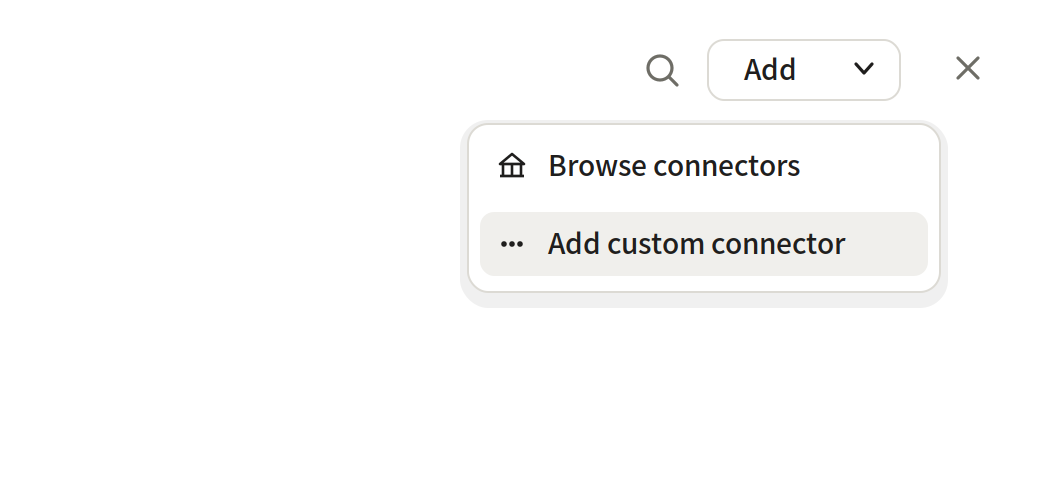
Open claude.ai → Settings → Connectors, press Add at the top right, then choose Add custom connector.
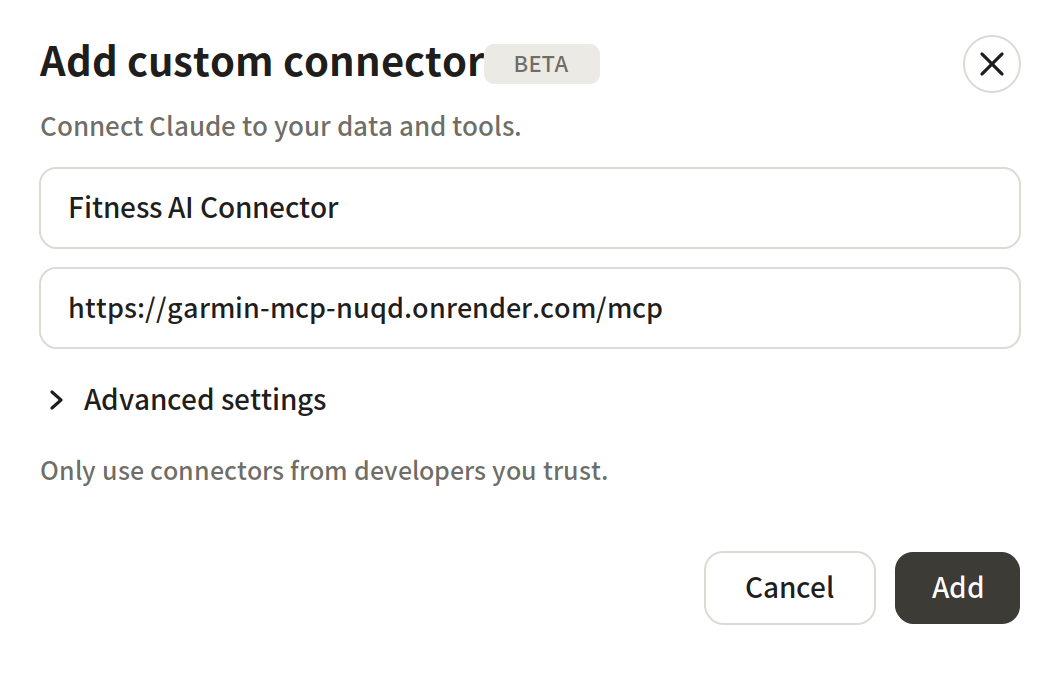
Name: Fitness AI Connector
URL: https://garmin-mcp-nuqd.onrender.com/mcp
You don't need to open Advanced settings — the OAuth fields can be left alone.
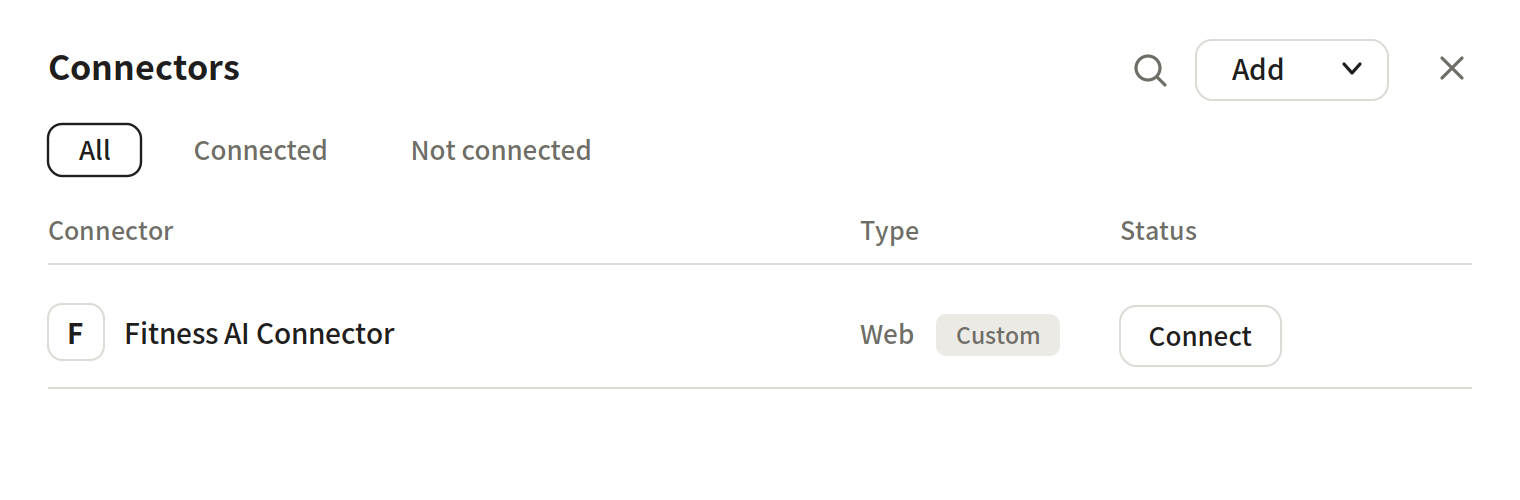
If Fitness AI Connector appears in the connectors list with a Custom tag, it's been added.
When Claude uses the connector in a chat, the Fitness AI Connector sign-in page on fmp.it.com opens ("Welcome — Log in to Fitness AI Connector"). This is not a Garmin login — it is signing in to (creating an account for) Fitness AI Connector itself.
You can sign in with an email and password, or with a Google account. If this is your first time, create a new account from "Sign up".
If this is your first time, your Garmin account is not yet connected right after signing in. In that case, you'll be guided to a Garmin connection link (https://garmin-mcp-nuqd.onrender.com/garmin/link).
Open that link in your browser and press Allow on the Garmin consent screen. Once authorized, your Garmin account is connected and data can be retrieved. You only need to connect once; after that it's automatic.
(Note: If you've already connected Garmin via another AI assistant, this step is skipped and the connection completes immediately.)
Try asking Claude "Show me today's health summary" or "How has my sleep been lately?" If an answer comes back based on your Garmin data, your setup is complete. A Garmin attribution note — indicating the data was recorded by a Garmin device — appears with each answer. This is by design and is a normal display.
⚠️ Time until data appears, and the historical-data limitation
Data from before the day you connect cannot be retrieved. Due to a Garmin policy (a restriction on new apps from November 2025 onward), only data from the connection day onward is available.
Also, right after connecting, data may not have arrived yet. Sync your device in the Garmin Connect app; it can take a few hours up to 24 hours for data to arrive. Seeing "no data" right after connecting is not an error.
💡 If the connection doesn't work
In a browser's incognito/private mode, or with settings that block third-party cookies, the sign-in screen may stall partway or the connection may not complete. In that case, try again in a normal browser window with pop-ups and cookies allowed.
Using It Again #
Adding the connector, signing in, and connecting Garmin are all one-time steps. From the second time on, just ask Claude and your data is fetched automatically.
💡 We've also applied to Anthropic's connector directory. Once it's listed, you'll be able to add it directly from search in Claude. The steps above work today either way — a directory listing only makes it easier to find.