Use with Custom GPT (Ends November 30, 2026) #
The Custom GPT version of Fitness AI Connector ends on November 30, 2026. To keep using it in ChatGPT, use the Plugin instead — sign in with the same account and your data and plan carry over. New features such as sending workouts are available only in the ChatGPT Plugin version and the Claude version. See How long can I keep using the Custom GPT version?
Until then, you can use it in a chat just for your Garmin data, opened from the GPT Store. Works on all plans, including Free.
What You Need #
- A ChatGPT account (Free, Plus, or Pro)
- A Garmin device + Garmin Connect account (age 18+)
- (Optional) A Google account — it makes signing in smoother, since you can choose “Continue with Google” on the sign-in screen described below.
First-Time Setup #
The first time you use it, follow the steps below in order. There are several stages: sign in → allow tool access → connect your Garmin account.
Works on Free plan, too. Opens in ChatGPT.
The link opens the GPT's chat screen directly — its logo, description, and conversation starters are shown. Tap a conversation starter or type a question to begin.
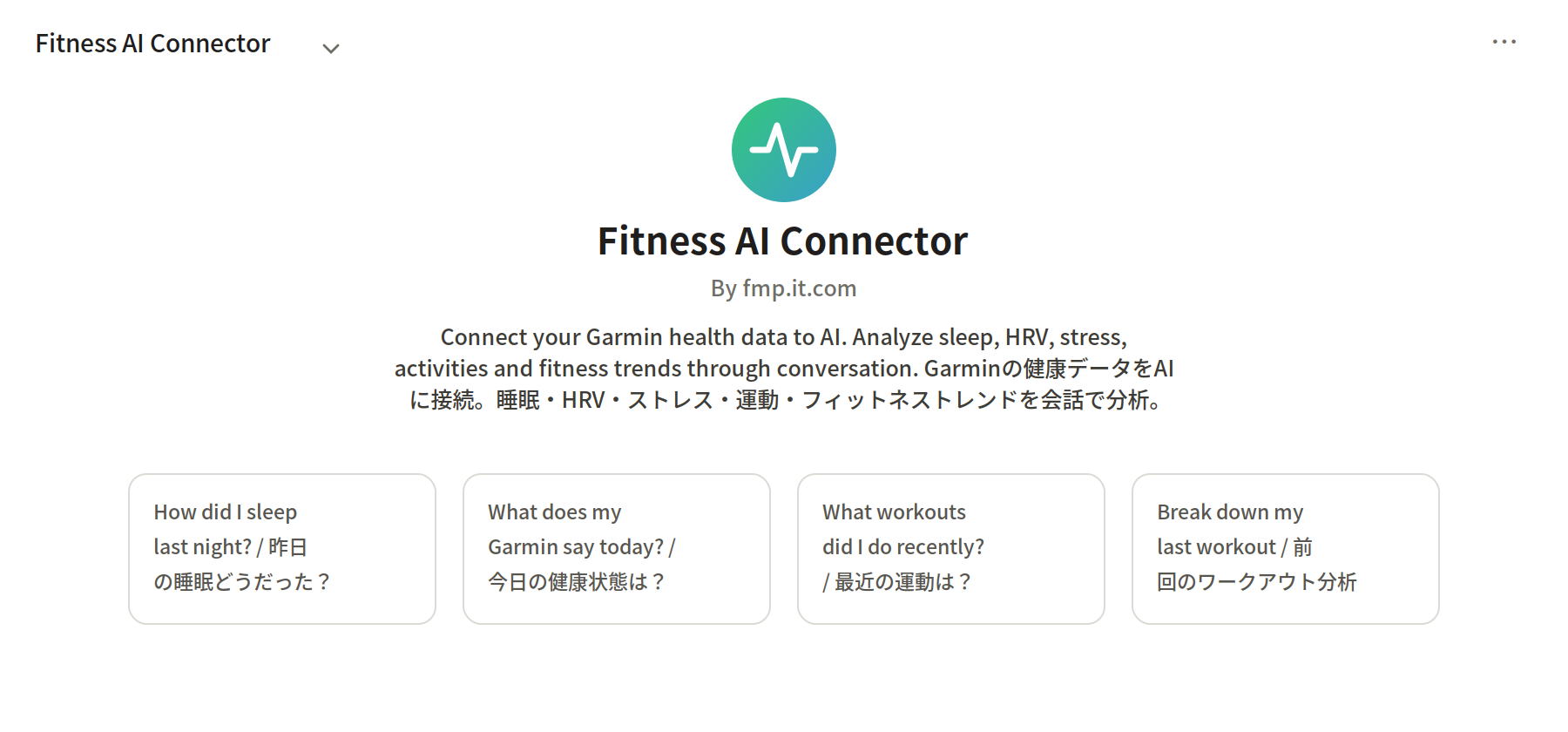
💡 On Plus and above, you can also open the store from the "GPTs" menu in the sidebar, search for "Fitness AI Connector" (by fmp.it.com), and press "Start Chat" on its detail card. The Free plan doesn't have this menu, so use the button above or type chatgpt.com/gpts into your address bar.
The GPT doesn't stay in your sidebar once you leave the chat. To open it quickly every time, choose "Pin GPT" from the "⌄" menu next to the GPT's name. It will be pinned under "Pinned" in the sidebar, so you can open it with one tap next time.
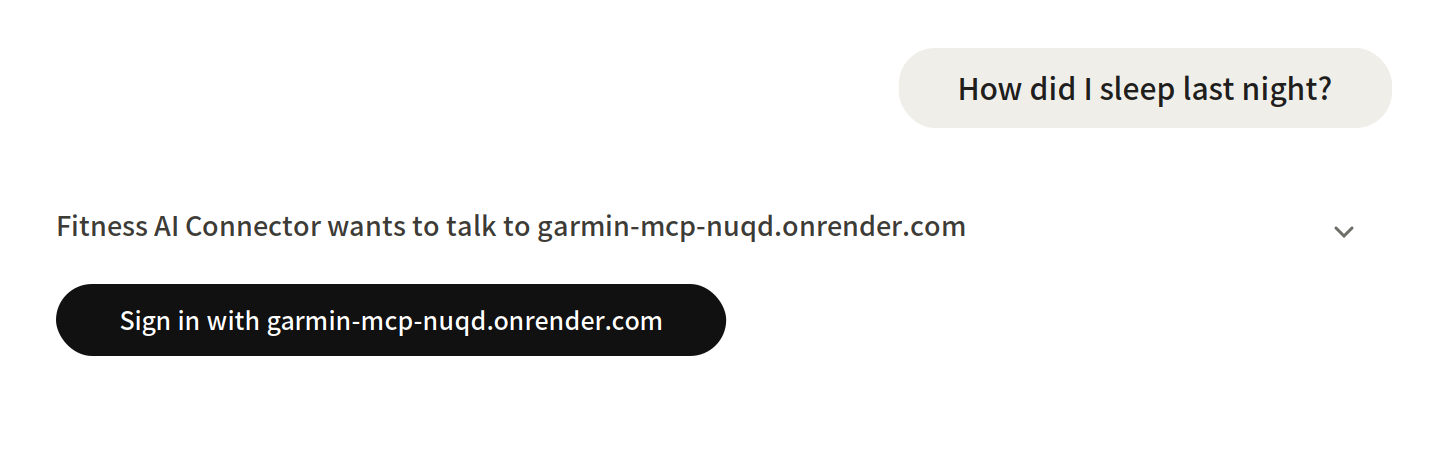
Tap a conversation starter (e.g., "How did I sleep last night?") or type your own question and send it. Sending it kicks off the authentication needed to fetch your data.
First, a screen appears confirming the connection to an external service, and a sign-in button for garmin-mcp-nuqd.onrender.com appears. This is not a Garmin login — it signs you in to Fitness AI Connector itself. The domain name may look unfamiliar, but it's our service's authentication server, so there's nothing to worry about.
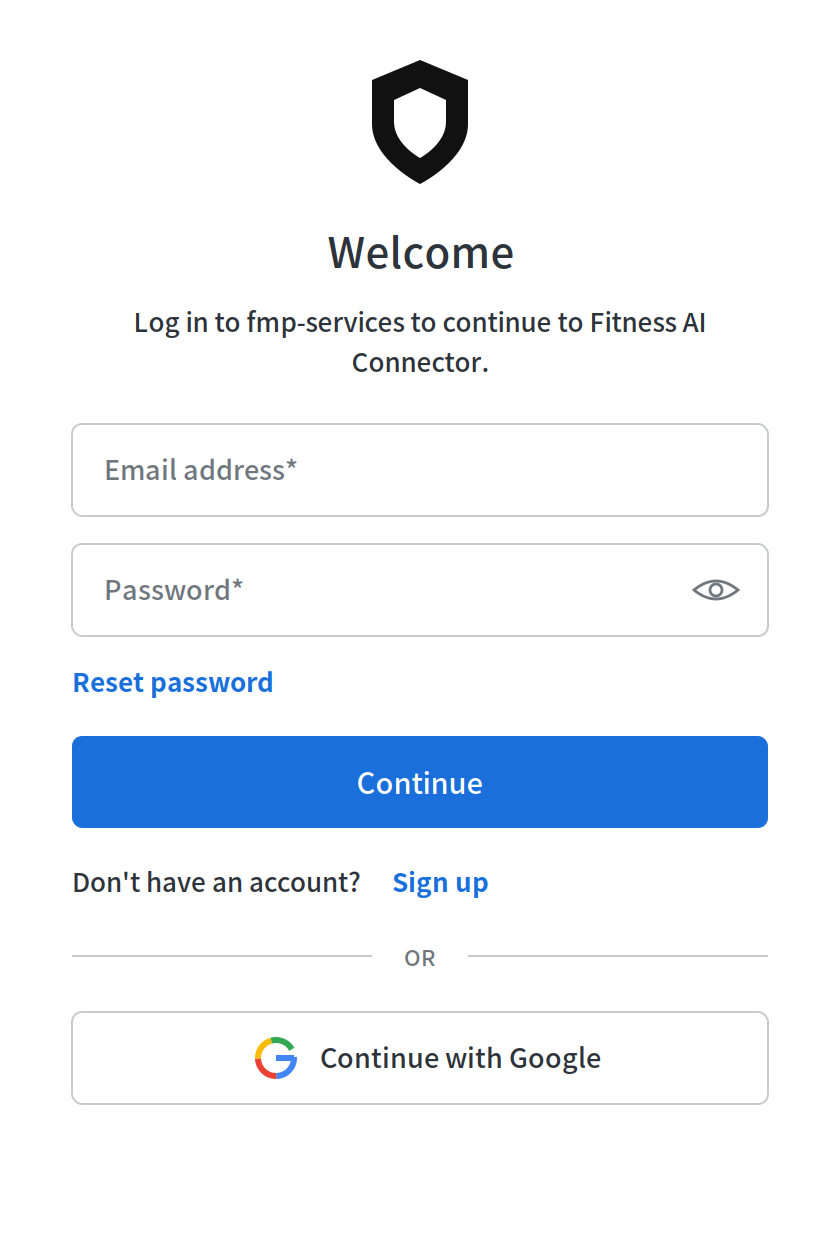
When you continue to sign in, the Fitness AI Connector login page on fmp.it.com opens. You can sign in with your email and password, or with your Google account. If it's your first time, choose "Sign up" to create an account.
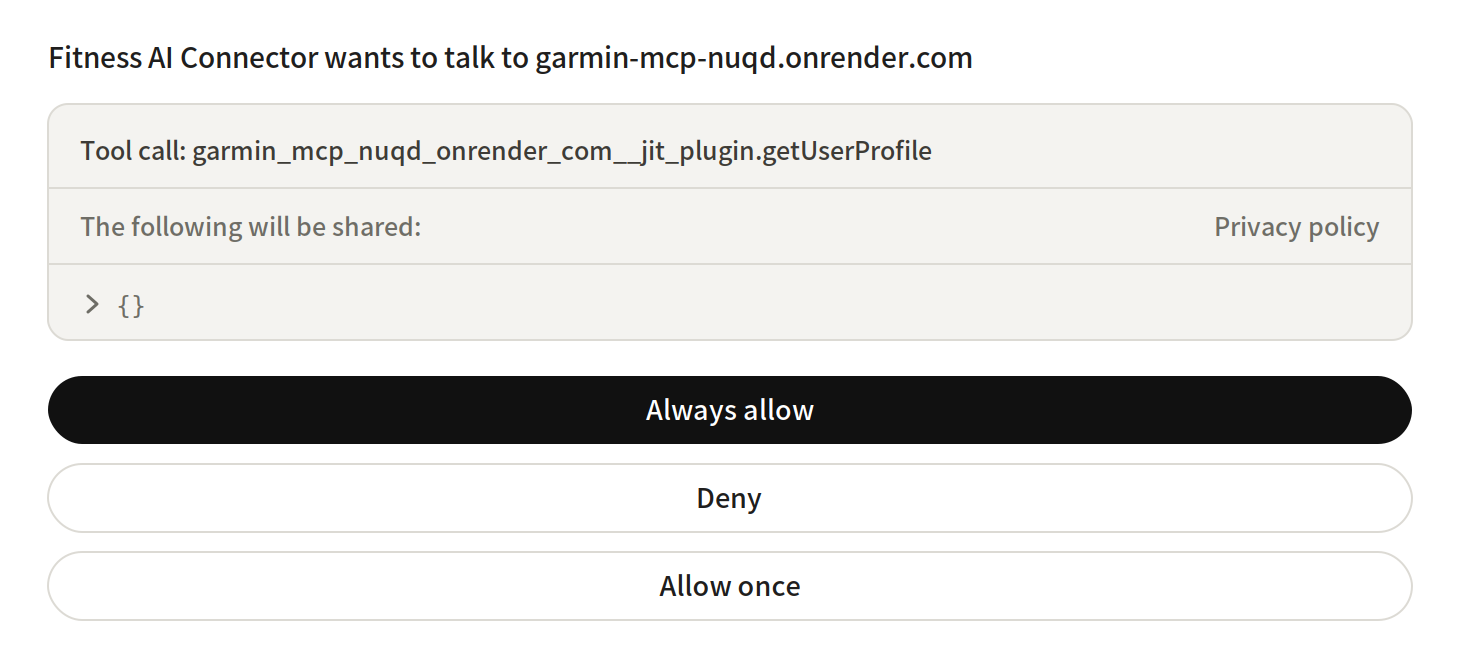
After signing in, a tool-call confirmation dialog appears with three choices: "Always allow", "Deny", and "Allow once." If you'd rather not be asked every time, "Always allow" is the smoother choice.
The dialog shows a technical name such as garmin_mcp_nuqd_onrender_com__jit_plugin.getUserProfile. ChatGPT generates this automatically from the connected domain — it's normal.
Right after signing in, your Garmin account isn't connected yet. In that case, the GPT gives you a Garmin connection link (https://garmin-mcp-nuqd.onrender.com/garmin/link). Open that link in your browser and follow these steps:
- Garmin's sign-in screen appears. Sign in with your Email Address and Password.
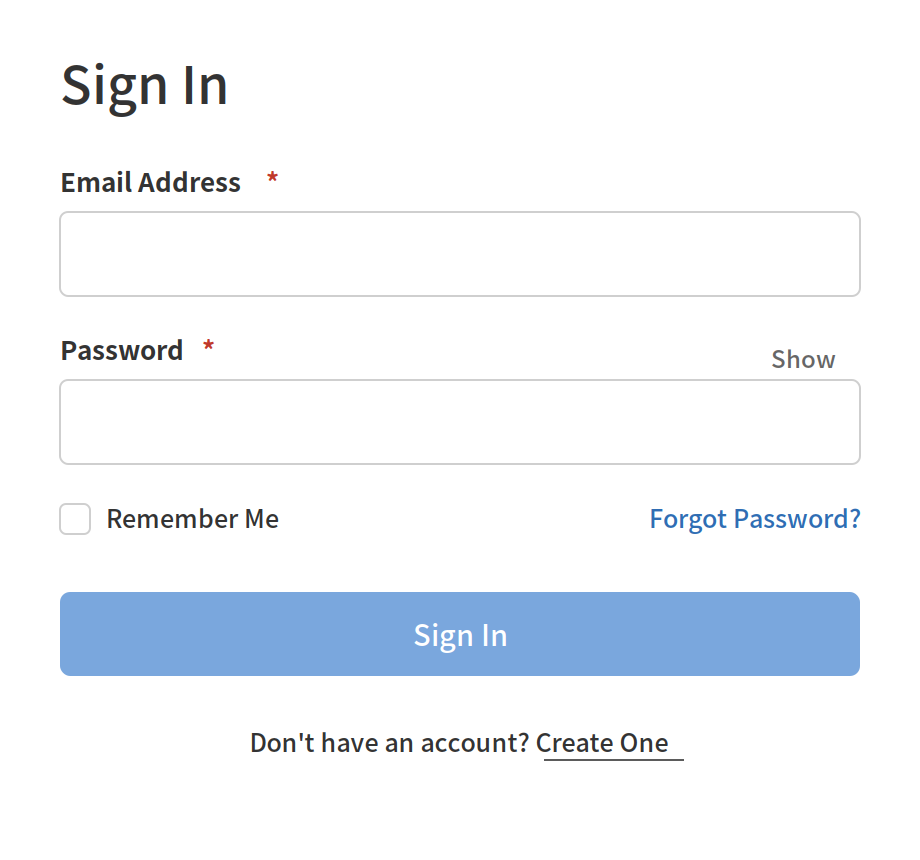
- After signing in, a data-sharing screen appears. Turn all three items — Activities, Daily Health Stats, and Historical Data — ON, then press "Save".
⚠️ Historical Data is OFF by default — be sure to switch it on, or past data can't be fetched.
Note: leaving any item off means that type of data can't be retrieved.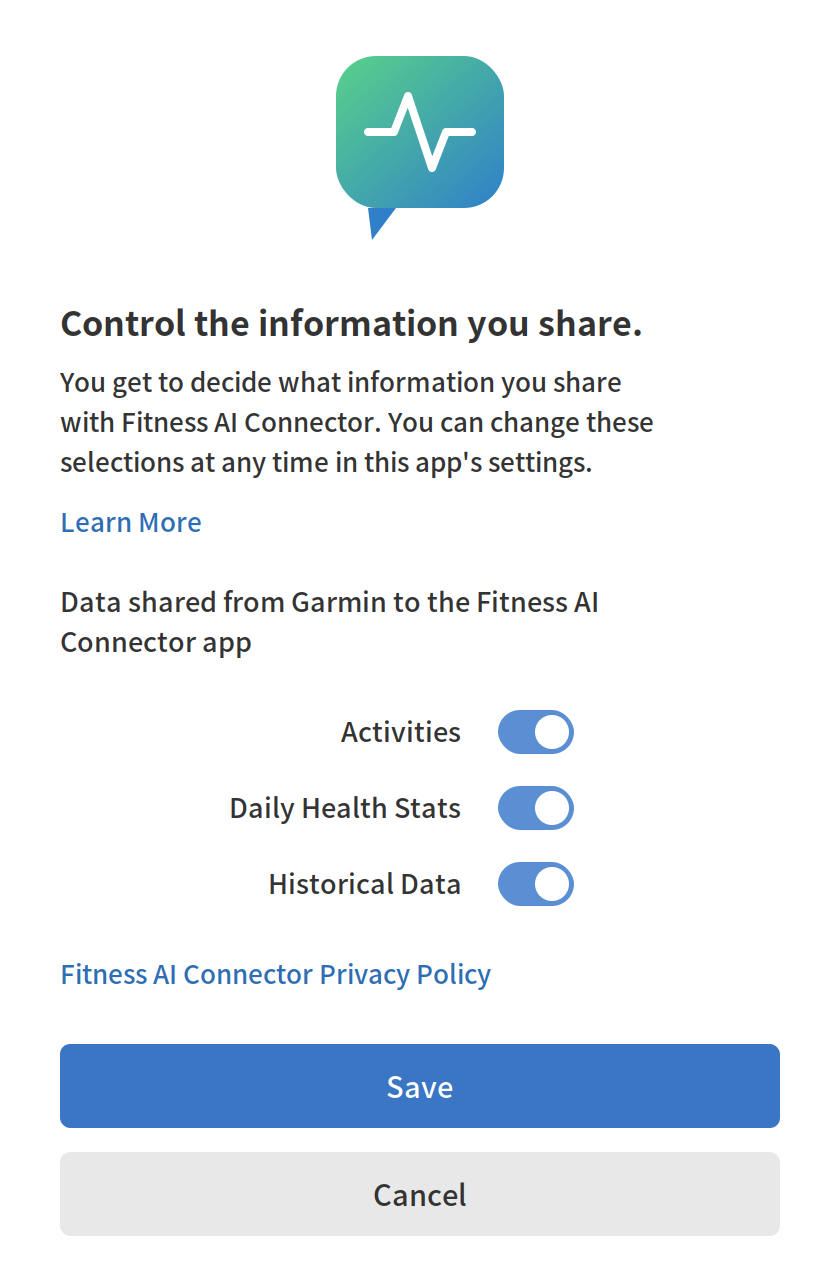
- On the confirmation screen "Connect with Fitness AI Connector?", press "Agree".
- When a completion message appears, close the window.
You only need to connect once — after that it's automatic.
Note: Garmin's screens follow the language set on your Garmin account, and Garmin may change their design, so what you see can differ from these images.
Once your Garmin is connected, return to the chat and send the same question again. This time you'll get an answer based on your Garmin data. From here you can freely ask things like "How's my health today?", "How has my sleep been lately?", or "What workouts have I done recently?"
Each answer ends with a Garmin attribution (📊) indicating the data was recorded by your Garmin device. This is expected and normal.
⚠️ Time lag before data appears, and a limit on past data
Data from before the day you connect can't be retrieved. Due to a Garmin policy (a restriction on new apps from November 2025 onward), only data from your connection date onward is available — there's no way to go back and fetch older history.
Also, right after connecting, your data may not have arrived yet. Sync your device in the Garmin Connect app; it can take a few hours up to 24 hours for data to come through. Seeing "no data" right after connecting is normal, not an error.
Using It After the First Time #
If you pinned it during setup, just open it from "Pinned" in the sidebar and ask away. If you didn't pin it, search again at chatgpt.com/gpts or bookmark the direct link.
Signing in and connecting Garmin are one-time steps. From the second time on, simply chat and your data is fetched automatically.